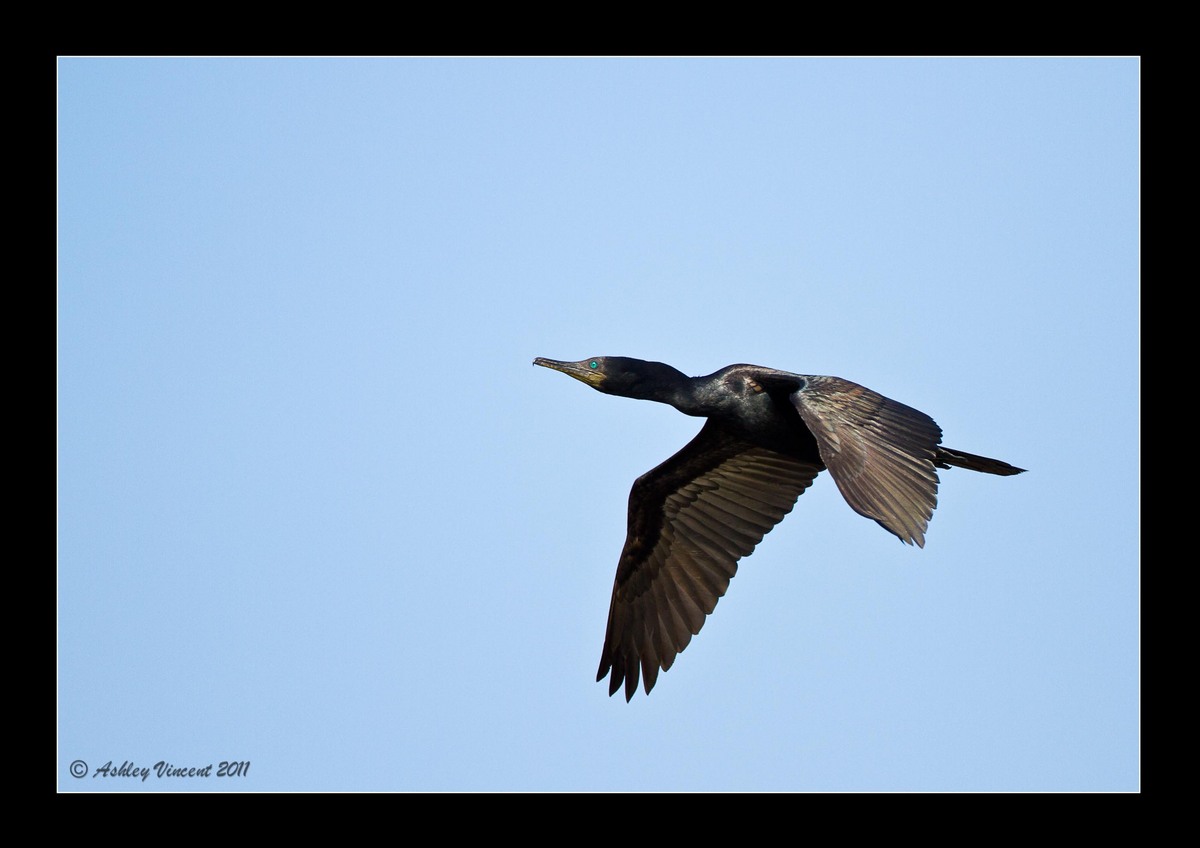
Little Cormorant
by Ashley Vincent
Canon EOS 7D, EF 500mm f/4L IS USM, Aperture Priority, f/4 (1/2000 sec), ISO 200, +2/3 EV, Handheld, JPG from RAW, Cropped About 40% from Full Frame
The next short series of shots I've lined up to show you are of large birds in flight.
In the past six months I've been lucky enough to visit a number of different areas around Thailand to photograph birds, but if I had to choose just one to revisit again and again there'd be no contest; the place is called Bueng Boraphet, which is located in the province of Nakhon Sawan, known as The Gateway to the North.
Bueng Boraphet is actually the name given to the largest freshwater lake in Thailand. As my wonderful wife informs me, “Bueng” means “lake” in Thai - something I really should have known by now, having lived here for the better part of the past 21 years ;^. - and “Boraphet” is the apparently the name of some kind of bitter tasting plant that grows prolifically in that area.
There's more I'd like to share with you about Bueng Boraphet, but probably best to spread it out between the three photos of this short series; as an old mentor of mine once said, “The mind can only absorb what the seat can endure.” ;^p
Critique and comments always welcome, thanks in advance :^)

Comments
12 commentsI really like the way you captured the devils eye feature in this cormorant. You must have been very close to capture them so vividly. Excellent detail and I love the way you have the bird positioned.
Rick
Ashley, I enjoy being able to see the feather patterns of both the upper and under side of the cormorants wings, the comp you used and the nice view of the eye. I do detch a halo around your bird which can often happen with darker bird against a blue sky, the best way I know to show you is through a screen shot of your image in a temporary threshold level layer. I've attached the file and the halo shows clearly at 210. I agree with Wayne about a little more detail in the blacks.
Rick, Dan, and Wayne: As Kwan pointed out, these Cormorants are quite common in this area and there are many of them, however, for some reason only a small percentage have this brilliantly coloured green eye and, generally speaking, they are the only ones I'll endeavour to shoot ;^)
Mia: Many thanks for pointing out the halo that I wouldn't have noticed without seeing it on your screen shot :^.
Couple of questions if I may:
Assuming you're using PS for this (I'm working with LR3 and CS5), where can I locate this Threshold panel? Can't seem to find this feature in any of the pulldown menus on CS5.
Is there a relatively easy fix for this sort of halo? Don't want take up too much of your time, but now that you've raised this issue and shown me how to check for it, I'm naturally curious to know how I can resolve it when I find it again in other images ;^)
When you are masking a subject for sharpening it needs to be done very carefully, making sure that none of the blues (or other colors) are inside the sharpening mask, sharpening does "brighten" the subject a bit and if that sky is in the mask it ligthtens the sky too. That is one cause for a halo. Another halo can be caused by sharpening the whole image instead of just the subject(s). Blue skies and darker birds often create a halo on resizing if you use Bicubic instead I use Bilinear which decreases (for what ever reason) the chance of the halo showing just on resizing. I don't recommend using "bicubic sharper" because that applies a bit of sharpening on resize that might also create a halo.
One other issue that can cause something that looks like a halo but is actually artifacts caused by over compression. I just now looked at the file sizes for you images, the small one is only 91.4 kb and the larger version surprised me at only 89.8, so part of your halo is from a masking issue, another part maybe caused by over compressing you images. I noticed the blocky crinkles in the sky background on the threshold level graphic I posted here and didn't quite put that together, mea culpa, I had a lot going on right then. Try to keep your 720 pixel version just barely under 300kb, the 1200 pixel version just under 500 kb. Over compression doesn't just cause those artifacts, it can also cause loss of detail and sharpness.
Hope that helps!
*edited for a typo
Mia: Wow! Thank you so much for your time and for explaining so many things that will seriously help me improve my post-processing skills :^)
In response to your latest:
Having followed your directions re how to bring up the Threshold panel (Layer/New Adjustment Layer/Threshold) the pop-up panel I'm getting looks completely different from the one showing in your screen grab. I guess the reason for this is that I'm using PS CS5 while you're working with an earlier version, though perhaps I'm wrong in this assumption.
Not sure how to make a screen grab, so I'll explain what I'm seeing in my pop-up panel: There are three fields one below the other, the first is "Name", second is "Color", and third is "Mode". There's also a box one can click on or off named "Use Previous Layer to Create Clipping Mask", as well as a small field to select the "Opacity".
By default in the "Name" field it's written "Threshold 1", which one can write anything else.
The range offered in the "Color" field is: None, Red, Orange, Yellow, Green, Blue, Violet, Gray ... Black isn't an option.
The "Mode" field has many choices: Normal, Dissolve, Darken, Multiply, Color-Burn, Linear-Burn, Darker Color, Lighten, Screen, Color Dodge, Linear Dodge (Add), Lighter Color, Overlay, Soft Light, Hard Light, Vivid Light, Linear Light, Pin Light, Hard Mix, Difference, Exclusion, Subtract, Divide, Hue, Saturation, Color, Luminosity.
I've already tried many of these combinations, but none give me the image as yours shows with the subject and most of the BG in black relief, showing the halo parts up in white.
I also tried this by selecting the subject only and experimenting on that with the various choices, and again by inverting the selection, still no joy :^(
Any further ideas on how I can get my Threshold to appear like the one you've shown?
As to the file compression of photos I upload: I'm still working my way toward a better understanding of all this, but for now I'm still using the same method I figured out a while back; I use Lightroom (LR) 3 - a programme I began learning and using a few months before I finally installed PS CS5 - to crop my images before sending them over to PS, having made adjustments in PS I then save the image as a PSD (which works out considerably smaller in size than a Tiff file) and, back in LR3, I then add a border and watermark in LR3's Print module before saving it as a JPEG to disk.
The settings I chose in LR3's Print module to create these JPEG files are - File Resolution: 240 ppi, Print Sharpening: On; Standard, Media Type: Glossy, and then I adjust the JPEG Quality slider to whatever usually brings the size of the JPEG file under 300kb for posting up on the board. I upload these images to my Flickr account and copy the URL's that fit the maximum kb sizes we allowed to post up here in small and large.
Mia, this is probably a heck of a lot for any one person to absorb and digest, let alone respond to, so I'll quiet understand if you can't find the time to address all this. So much of this learning is down to trial and error anyway, which I'm already getting used to, so at some point I'm sure I'll figure most of this out by myself if need be.
Once again, many thanks for the time you've invested with me so far; you've already been a huge help :^)
All the very best,
Ashley
I did a very quick search on Google using the key words "photoshop cs5 threshold" and came up with a multitude of pages that have the information for applying a temp threshold levels layer in CS5. You also could probably find it by using the "help" feature within Photoshop using the search term "threshold". I do use an earlier version of PhotoShop and haven't felt the need to upgrade because the version I have does everything I need it to do very well.
There are two ways in CS5 to get to the threshold level, one is Image/Adjustments/Threshold. I've attached a screen shot of CS5's panel on the right side that shows an icon that you can also use to bring it up.
You might want to look here too: http://help.adobe.com/en_US/photoshop/cs/using/WSfd1234e1c4b69f30ea53e41001031ab64-7641a.html
I can't help you with your work flow and over compression issues because I don't use Light Room, I only use PhotoShop for processing my files and the only "organizer" I use is my memory.
I can say that some editing programs have pre-set defaults and I'd check LR and see if there is some setting there that has a default that might be compressing your files too much. Perhaps someone who uses LR can assist you with that if you start a topic in the General Discussion forum area I'm certain someone would help.
Kind of embarrassed that I didn't think to do such a search ;^. but you having gone the extra mile, helping me to find what I was looking for - the Threshold icon - by way of your screen grab above, has worked a treat, many thanks again :^)