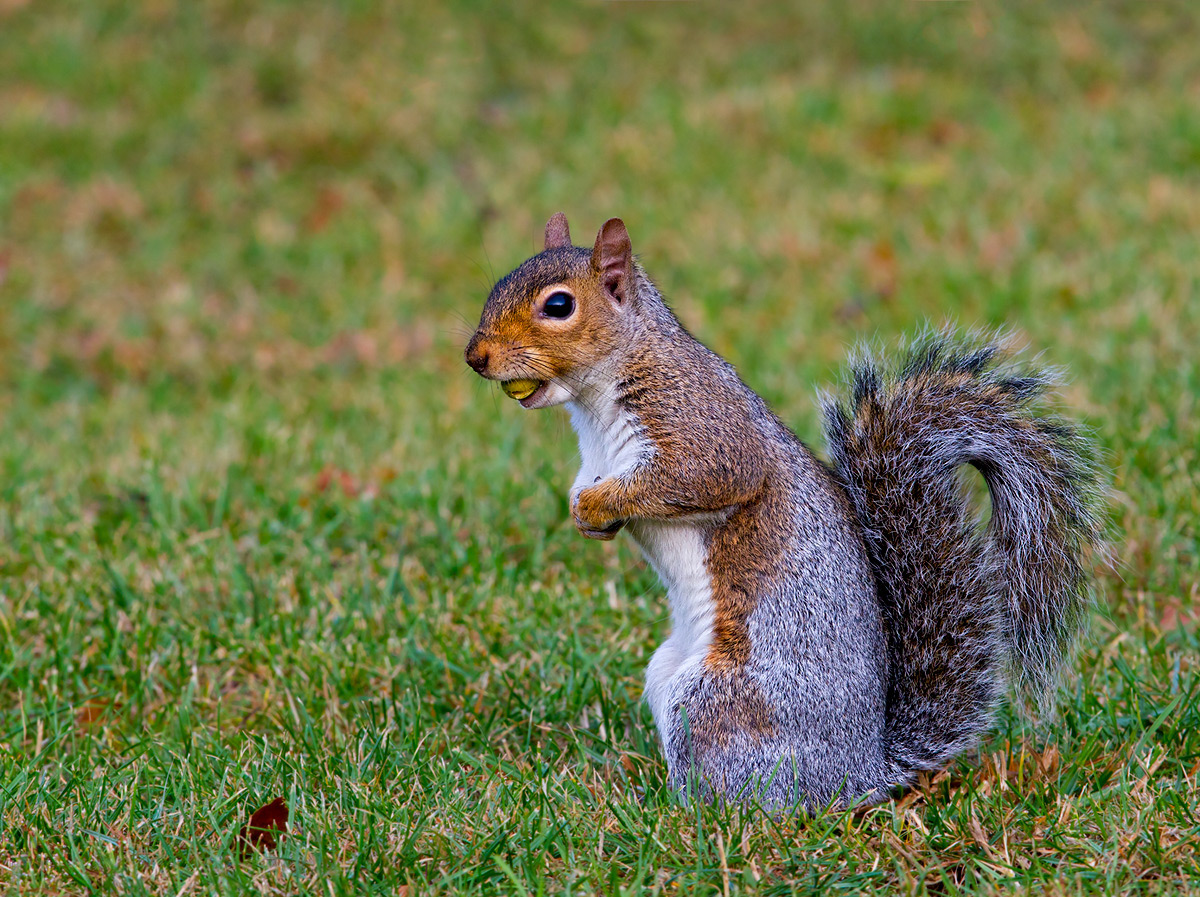
Cheeky grey squirrel looking for a place to bury his acorns. Surprisingly difficult critter to photograph, they can move very quickly!
Taken with a Canon EOS 7D, EF 600mm f/4L IS USM, 1/250sec, f/11, ISO400, manual exposure. Imported with Photoshop camera RAW, processed in CS5 and noise reduction with Neatimage pro (trying it out, seems okay). 5% crop to right side.
C's & C's welcome.
I must give a massive thanks to Phil Shaw.


Comments
7 commentsDavid
I sometimes use a Levels Adjustment layer to correct this kind of problem. Select the colour sampler tool (keyboard shortcut = I) and place a 3x3px or 5x5px sample on an area that should be neutral (i.e. white, black or some shade of grey between R = G = B, at least approximately). In this case I would place the colour sample marker on the white fur below the squirrel's forearm. The colour sample will appear in the Info Palette. Check which colour channel is dominating. In this case, the blue channel is going to have higher values than the red and the green.
To neutralize the color, open a Levels Adjustment layer. Click on the Channels dialogue box and select the Red Channel. Take the white point slider on the x-axis of the Levels histogram and move it a few points to the left and watch the Red channel value in the Info Palette. You are lookng to set the Red-channel value equal to the Blue-channel value.
Now select the green channel from the Channels dialogue box. Move its white point slider until the Green-channel value equals the Blue-channel value.
That removes and colour problems.
Set the Channel dialogue box back to RGB and move the central gamma-slider to the left to increase the image brightness, or you can do this with a Curves adjustment layer by raising the central portion of the RGB curve.
For printing, I would also probably crop it back to 3 x 2 format, removing some of the out-of-focus grass above the squirrel's head.
Nice one, Paul. I'll be starting my GS project next week, must get out there and do some acorn foraging
Andy...
The shot was taken from a hide and a very quick compose and click to catch the squirrel before he scampered off, so the POV is a bit on the high side.
I'll do that Phil, I can see I have lots to learn about processing! Thanks for sharing your knowledge.
Andy, sounds like fun!
Thanks,
Paul.