Halo??
by Scott Frye
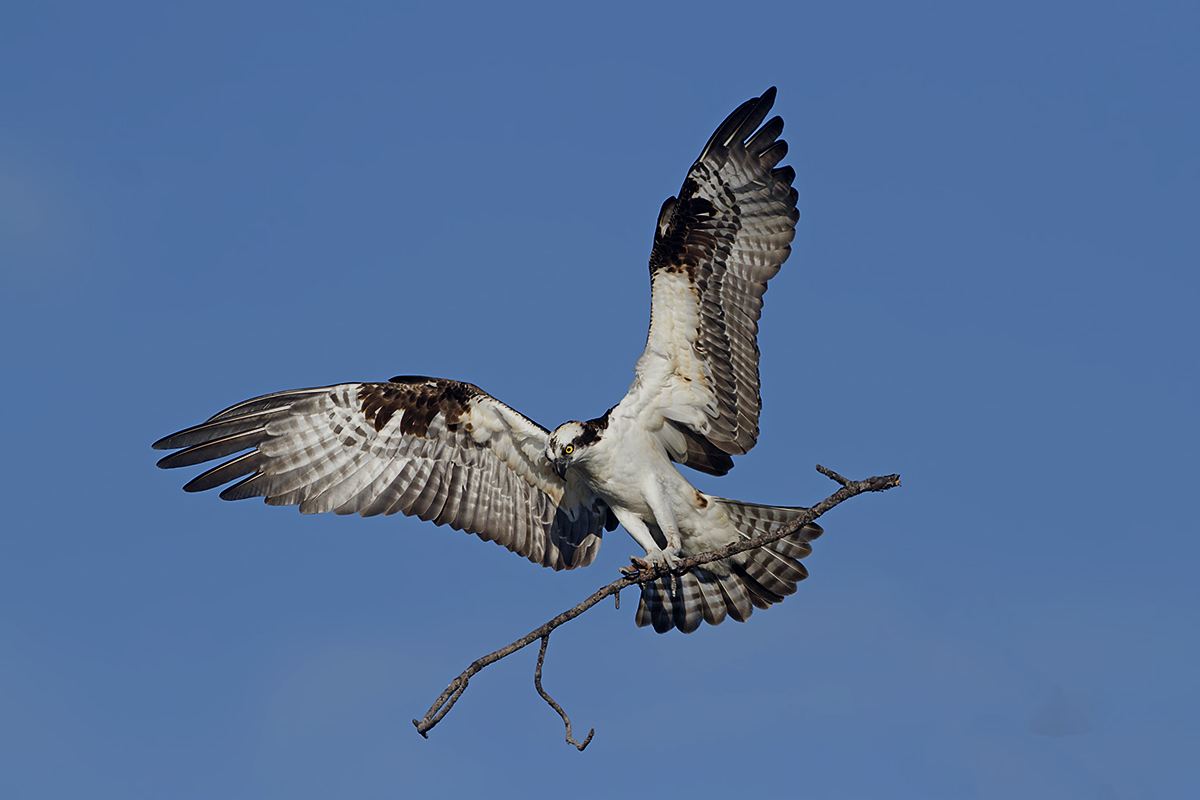
Osprey at Weeki Wachee Preserve, Florida
1/2000 at f8 and ISO400
Canon 500mm with 1.4 TC
Canon 7D
When I shoot birds against a bright sky, it is subject to a halo.
For this picture, I used Threshold to look for a white line around the bird (halo) -- is this a good method to identify a halo?
I used threshold and there was not a white line around the bird. I resized for the web (Elements) using Bicubic Sharperner. when I used Threshold there was a while line surrounding the Osprey and the stick after resizing. It seems like resizing caused the halo???
I can repeat the process and get the same results.
How do you handle halos such a these? Can I minimize haloing at capture time?
I can cleanup some haloing using clone stamp and setting mode to dark -- but that only works against dark edges. And is it not always successful. What is a good good Elements cleanup method for this kind of halo?
Although threshold shows a solid white line around this image, I just cannot visibly see the halo.
How can I fix this processing issue?

Comments
6 commentsYou posed a bunch of questions. In the field, when shooting a subject like this I think exposure compensation if I'm shooting in Aperture priority (or Shutter priority -- rarely). My preference is to shoot manual exposure to make sure the background is not going to affect the overall exposure on the subject. To me, this osprey is a bit underexposed, which can quickly generate halos in post processing when you do any sharpening. When I looked at your larger version in Photoshop, the first thing I noticed is that you do not have a color profile embedded in the image. That could be the reason things seem darker, or create color shifts, but my guess is the image is underexposed as well. I always embed the sRGB profile for display on the web. When I put a Threshold adjustment layer on your image and move the slider to the right, I do not see a white line. I do see it when the threshold slider is in the middle.
I do see the thin halo around the bird (more evident in the larger version). I just use the clone stamp tool with the blending mode of the brush set to darken, choosing a blue next to the bird as the source and going around the bird with a small brush. The halo is not evident where the edge of the bird is white. Sounds like what you were doing?
As Keith says you should embed the sRGB profile in all of your images destined for the web so that the colors will look as you intended them to look on anyone's computer that has a color-aware browser (like Safari or Firefox). You need to get to the preferences for Elements and find the options for how it handles color management. When I first started using Elements I ran it with no color management and that prohibited it from assigning the profile. You need to chose a different option (I think the choices used to be No, Limited, or Full).
Once you've done that make sure that the color profile isn't getting stripped out by the use of Save for Web (by default it takes out all the EXIF values as well as the color profile).
When you downsize your image after making all the tonal adjustments use Bicubic (best for smooth gradients) instead of Bicubic Sharper. You won't be generating the fine line halo and you won't need to clone it out afterwords. You want to have complete control over the final sharpening step and do not want Elements to apply a generic sharpening step during down sizing.
Once you have your pair of final images (one at 720 and one at 1200 pixels) you can apply the proper amount of sharpening to each of them independently. For an image such as this Osprey against a simple solid color background I would make a color selection of the blue and then invert it to get the bird and branch. I would make this selection on a duplicate of the image layer. Then with the selection active ("dancing ants") I would call up the Smart Sharpen dialog and play with the sliders to get just enough sharpening. A value of 50-150 on the top slider, and 0.3 on the bottom slider, usually works for me but I vary this on every image. By doing the sharpening on a duplicate layer you have the ability to fine tune the sharpening with the opacity slider for that layer.
Although I use Elements as well I just don't know that much about post processing, at least not enough to help you out here. Sorry. I can comment on the image though. You have good detail in the feathers and a nice look at the eye. There is something un-natural looking about the eye though. Not sure if you worked it heavily or not so I just thought I would mention it. Since this is a sky shot and it would be very easy to add and remove canvas I would personally change up the composition just bit....remove from the right side of the canvas and add canvas to both the left side as well as the bottom. Love that you got the nest building material. Wing position is top notch. Exposure looks pretty good. I don't see a visual halo and that's all I care about. Nice job Scott.
Forgive me if any of this doesn't apply in elements (I use Photoshop). I work in layers, with smart objects, and I apply sharpening last (after resizing). I use Smart Sharpen, and I select only the bird and then apply the smart sharpen. This virtually never results in halos, while sharpening the whole image can very often create them.
Anyway, I do see the halo here, especially along the dark edges of the wings. In my experience, halos are not something that are captured in the field, they are introduced in processing, and if you work in layers, you can turn each adjustment on and off to see where in the process you created it. Typically broad, relatively diffuse halos are a result of exposure adjustments, while narrow discrete ones are often a result of sharpening.
This is a nice looking image, with good details and nesting material as a bonus. I'd prefer the bird a little higher and to the right, easily done by cropping and adding canvas as needed with this clean bg.