Gallery: Photo ArtPosted December 1, 2012294 views10 comments
Comments
10 comments
Comment posted by Patricia Brundage on December 1, 2012 at 7:21 AM
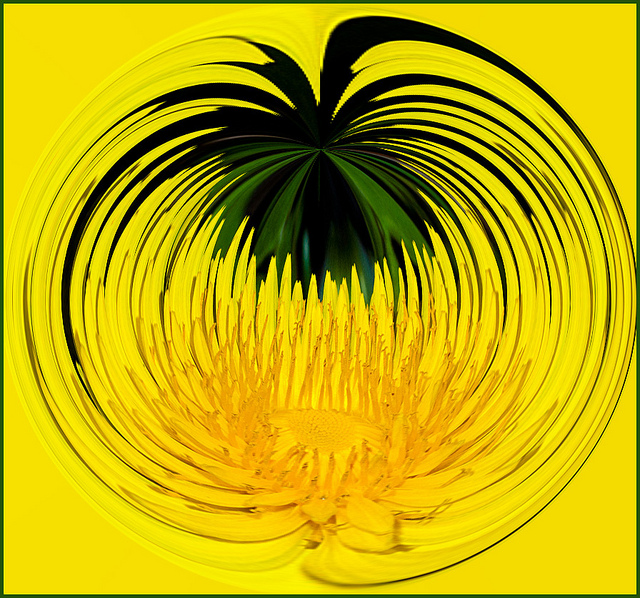
The lowly dandelion has finally been made a star! Powerful colors, lines and design. Love it!
Registered on March 23, 2006, 1111 Posts, 6531 Comments
Comment posted by Rebecka on December 1, 2012 at 9:56 AM
Absolutely love this! It looks like classic 60's pop art. I'd hang this on my wall. The yellow is so cheerful. Very creative, great lines. (How did you do this??)
Registered on February 5, 2009, 170 Posts, 924 Comments
Comment posted by Barb Pflaum on December 1, 2012 at 12:11 PM
Very cool distortion! Beautiful colors and lines. I like how I can see the dandelion at the bottom center and the greens on top.
Registered on January 14, 2009, 316 Posts, 2724 Comments
Comment posted by John Clulow on December 1, 2012 at 4:11 PM
Thank you for your comments. I have a few more of these I'll post sometime, maybe.
As to your question, I learned how to do this on another forum awhile back. Fun to play with in the winter months. The method I used requires Adobe Photoshop. Go to flamingpear.com. Download their set of free plugins called freebies. After you extract the zip file you will find in that set, a filter called "Ornament". There is both a 32 and 64 bit version of that. And so, depending upon which version of PS you are using, you would locate the Adobe>CSx>Filters folder on your computer (without having photoshop activated) and simply copy the appropriate file into that folder. Then when you open Photoshop, you will find a "flamingpear" line under filters and clicking on that will lead to "ornament"
So with that accomplished, the technique is this: You introduce an image into photoshop. You then select Filter>Flamingpear>ornament That will do the first part of the transformation. Then you immediately select Filter>Distort>polar coordinates, and that will complete the transformation.
The "art" part of this process, if there is any, consists in learning how to select the content and adjust the initial aspect ratio of the input in a way that will produce a desired output. For me, I like playing and being surprised; so this was a fun thing to do for awhile.
Hope that helps to answer your question.
Registered on November 1, 2012, 155 Posts, 1079 Comments
Comment posted by Christine Adams on December 1, 2012 at 6:13 PM
VERY cool! Simple as THAT!
Registered on January 24, 2006, 119 Posts, 1871 Comments
Comment posted by John Clulow on December 1, 2012 at 6:24 PM
Let's see your results, Chris! LOL Let's see how simple it really is....
Registered on November 1, 2012, 155 Posts, 1079 Comments
Comment posted by Karen Kane on December 2, 2012 at 3:35 PM
Love it.
Thanks for the info too John!
Registered on August 4, 2012, 66 Posts, 726 Comments
Comment posted by Marc Ward on December 4, 2012 at 8:15 PM
John,
Fun, bright, and happy image... Thanks for sharing what you did here. Flaming Pear has some cool plugins.
Registered on February 26, 2009, 304 Posts, 1365 Comments
Comment posted by SandyRichardsBrown on December 5, 2012 at 2:56 PM
Congrats on yout first WP!
This is very unique and effective - great vision!
Sandy
Registered on November 24, 2003, 3937 Posts, 12909 Comments
Comment posted by Ian Cameron on January 6, 2013 at 6:12 PM
That's very cool John a lovely interpretation.
Registered on August 6, 2004, 1125 Posts, 3318 Comments

Comments
10 commentsAs to your question, I learned how to do this on another forum awhile back. Fun to play with in the winter months. The method I used requires Adobe Photoshop. Go to flamingpear.com. Download their set of free plugins called freebies. After you extract the zip file you will find in that set, a filter called "Ornament". There is both a 32 and 64 bit version of that. And so, depending upon which version of PS you are using, you would locate the Adobe>CSx>Filters folder on your computer (without having photoshop activated) and simply copy the appropriate file into that folder. Then when you open Photoshop, you will find a "flamingpear" line under filters and clicking on that will lead to "ornament"
So with that accomplished, the technique is this: You introduce an image into photoshop. You then select Filter>Flamingpear>ornament That will do the first part of the transformation. Then you immediately select Filter>Distort>polar coordinates, and that will complete the transformation.
The "art" part of this process, if there is any, consists in learning how to select the content and adjust the initial aspect ratio of the input in a way that will produce a desired output. For me, I like playing and being surprised; so this was a fun thing to do for awhile.
Hope that helps to answer your question.
Thanks for the info too John!
Fun, bright, and happy image... Thanks for sharing what you did here. Flaming Pear has some cool plugins.
This is very unique and effective - great vision!
Sandy