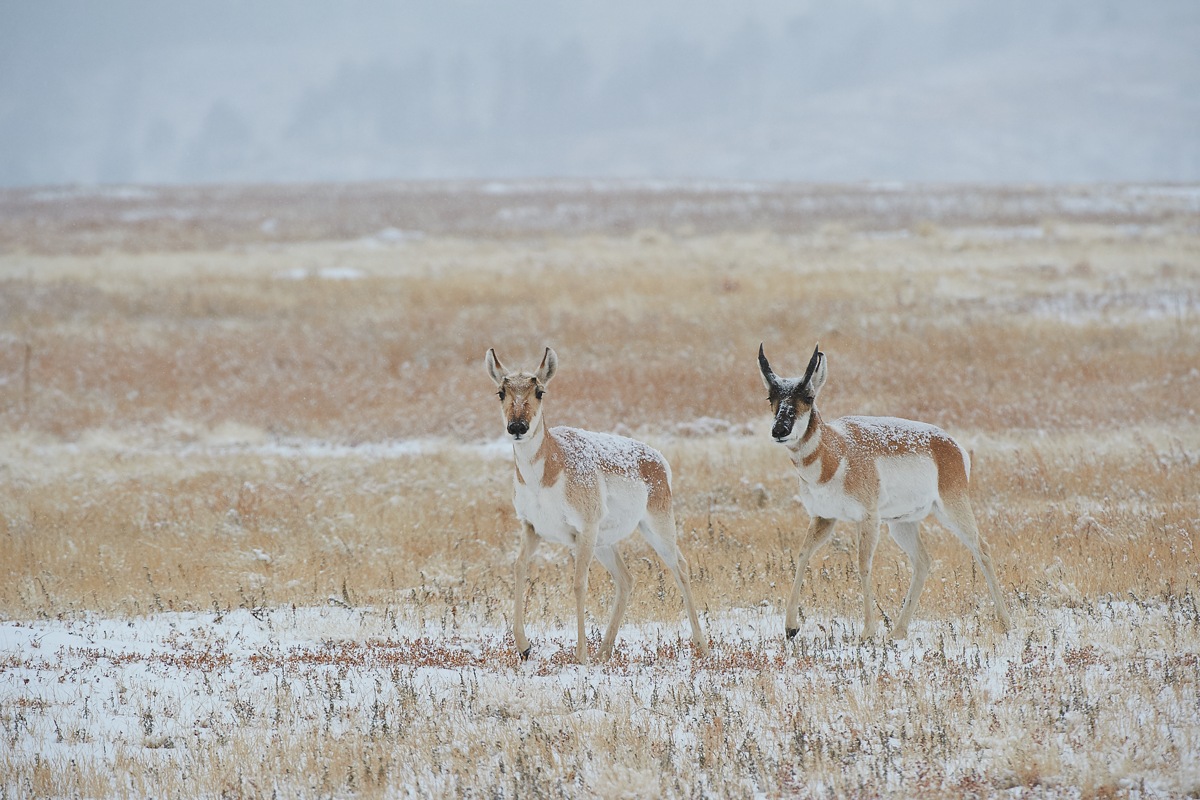
Pronghorn pair
by Lon Sharp
This is a photo from last season's files, as I am testing a new to me raw processing, using a trial version of Phase Capture One. I am really enjoying the raw processing subtleties, but in the learning phase it is driving me bonkers @!*#!*! trying to figure out a workable file management system/workflow! So far I haven't resorted to begging Brad for hints...
The image is of both buck and doe pronghorn about 6 weeks after the buck loses the outer sheath to his horns. The new horn first looks like an inverted ice cream cone, but rapidly grows into the signature shape. What I like most about the image is how well it demonstrates color harmony of animal to environment. A little snow and mirrored poses don't hurt, along with layers of different grass colors.
Nikon D3s, 200-400 @ 340, 1/800, f6.3, a bit of crop bottom and sides, may be best viewed large version
Suggestions welcomed.

Comments
6 commentsYou're going to love it...trust me. And thanks for highlighting yet one more of my secrets!
This image: Very nice colour palette - subtle yet not "boring" (at all). The snow on the backs of the pronghorns adds a lot to this image, as does the subtle band of hills and trees in the distant background. This shot might not do a lot for some people when seen online, but I doubt few wouldn't be impressed with it as a print. I like the composition as is and have no real suggestions for alterations to what I'm looking at.
Capture One Workflow: I can't recall if you manage your image collection with Lightroom, but I do. I've had no problem integrating C1 Pro into a workflow that uses LR for file/catalog management, Capture One Pro for raw conversion and SOME selective edits, then PS for final edits. Here's the rough flow:
1. I use SESSIONS rather than CATALOGS in Capture One. This is mostly for legacy reasons, but I create a number of sessions each year for specific events and categories. For instance, in 2015 I will create sessions called things like 2015-Mammals, and 2015-Birds, 2015-Landscapes, 2015-Gear Testing, etc. And, I'll have sessions called things like 2015-Khutzeymateen, and 2015-Marine Mammals (associated with images from my photo tours).
2. After a shoot - say that evening - I import images into Lightroom and do file management things - like culling images and trashing some images, possibly keywording, etc. And, for those I want to process from RAW I flag. Then, I filter all flagged images and EXPORT (in original format) to the CAPTURE folder of the appropriate session. So...after a day of shooting in the Khutzeymateen the flagged raws go into the CAPTURE folder of my session called 2015-Khutzeymateen.
3. I then do the editing that I choose to do in Capture One and PROCESS the file to a 16-bit TIFF in Prophoto RGB AND have it automatically opened in Photoshop (this is specified in your C1 process "recipe").
4. I do whatever final editing I might do in Photoshop (e.g., final tweaking of contrast using a selective Curves adjustment layer) and keep those adjustment layers intact (no flattening). I then do a SAVE AS...in Photoshop and save it back to the original folder where it was imported to and where the original raw is still sitting. I tend to save my MASTERS (un-cropped, still with Adjustment layers, and with NO output sharpening) in 16-bit PSD Prophoto format.
5. To ensure Lightroom will "see" that file and allow you to manage it with LR, you then must select the folder that contains the new PSD file, right click on it and choose the "Synchronize Folder" option. That will store it in LR's database...along with any associated metadata.
Note that this sounds long and convoluted, but once you've done it a few times it becomes second nature and super fast.
Note tha Capture One Pro (and probably the non-pro version) does offer it's own catalog and file management tools but, to be honest, they pale in comparison to those of LR. And, again compared to LR, they're dog-slow.
Finally - while Capture One Pro is my preferred raw converter (by a mile), it is a resource hog.
And finally (again!) - almost like Photoshop there are a TON of features in Capture One. I regularly use the following tools:
• WB Adjustment
• Colour Editor (yours would be a Color Editor!!)
• Exposure Adjustment
• HDR tools (Shadow and Highlights)
• Curves
• Levels
• Clarity (I especially like the Natural Clarity, and on landscape shots a lot of folks like the Punch Clarity...but you have to be careful with it as it also impacts on saturation - and with too much of it applied the image would look like what some many pass off as landscape shots these days...hypersaturated...)
• Noise reduction (tweak the default settings commonly)
• Capture sharpening (of course)
• Spot removal tool (for dust specks on the sensor)...
Of course, the final decision of what to adjust in Capture One vs. in Photoshop is up to the individual user...
Cheers...
Brad
PS: I wrote this because I just HATE it when you beg!!
About the image, I agree it will not likely get much "online" mileage. The thumbnail looks flat and the larger version gives a hint of how it can look if printed. I had considered making it brighter and more contrasty for punch, but that would have been counter to the reality of the pastel, moody lighting.
Good luck with the new workflow
You really need to view the large image to appreciate the subtle tones of this shot.
Pronghorns are so photogenic
good luck with capture one. This scene looks to be very cold and barren without any shelter from the winds ?
As mentioned the fitting into the colourization works well here and shows off the blending to a well camo. pair!
His juvenile horns were first missed as I first viewed before reading your description of this scene. The horns blend in too well and look like an ear extension. Maybe some minor toning for detail around his horns.
Are these pronghorn elusive and skittish to approach ?
Bill
Classic image...