Gallery: FloraPosted April 10, 201683 views9 comments
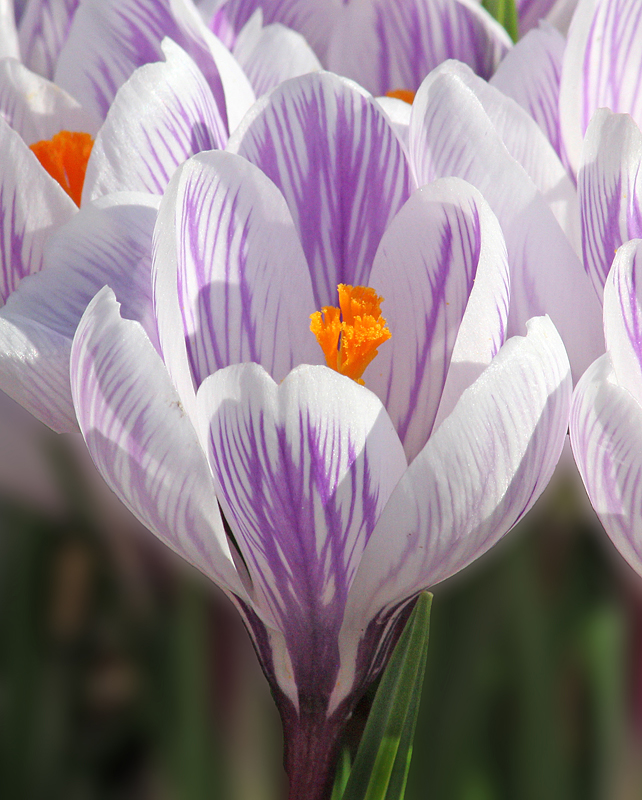
A crocus in a small cluster of crocuses.
Canon 60D, f/16, 1/400, ISO 800, 300mm. I used Topaz Lens Effects to blur the background in the lower part of the image.
Comments
9 comments
Comment posted by Jim Zablotny on April 10, 2016 at 2:24 PM
Hi Barb,
Very nice exposure with subtle details preserved in the bright areas of the image. Looks pretty good and I like how you used Lens Effects for the blurred parts of the BG................................Jim
Registered on January 17, 2004, 705 Posts, 3594 Comments
Comment posted by Ed Williams on April 11, 2016 at 12:13 AM
Wow, beautiful subtle colors in these crocus Barb. Ditto on the nice job with the lens effect blurring on the bottom.
Registered on December 28, 2010, 636 Posts, 3499 Comments
Comment posted by Philip Hodgkins on April 11, 2016 at 12:15 PM
Barb, the crocuses are lovely. Your selective blurring was a good idea, but you picked up some artifact with it around the base of the front crocus and the partial crocus on the right (the white halo). also, between the grass blade and the stem of the crocus is a spot which might should have been blurred.
Registered on July 24, 2006, 2741 Posts, 12349 Comments
Comment posted by Barb Pflaum on April 11, 2016 at 1:32 PM
Thank you for your comment, Phil. I always get a halo like that when I blur. I've tried different methods of blurring, but the I always get the halo. I don't know what to do about it. Maybe clone it out? I agree about the space between the grass blade and the crocus. I forgot to blur it.
******************************************************************************************* Barb, clone it out is an option, but tedious and prone to error, especially on a wide halo. Hopefully, you are using Photoshop. Here is how you eliminate haloing after a blur:
Select the subject (the crocuses and the leaf)
Use the refine edge tool to bring the subject to a separate layer. You now have the subject as the top layer with a transparent background.
Hold down the CTRL key and click on the top layer in the layers panel. This selects the subject on all layers
Click on the bottom layer and invert the selection. You now have everything but the subject selected on the bottom layer.
Apply your blur filter. There will be no edge halo. The added bonus now is that you can edit each layer separately (blurring, sharpening, hue, saturation, etc.).
When you are finished, flatten and save.
Phil Hodgkins
Registered on January 14, 2009, 316 Posts, 2724 Comments
Comment posted by Barb Pflaum on April 12, 2016 at 3:18 PM
Thanks for the suggestions, Phil. I use PS Elements 13 and I think that has what I need to do what you suggested.
Registered on January 14, 2009, 316 Posts, 2724 Comments
Comment posted by Barb Pflaum on April 12, 2016 at 8:46 PM
Here is a repost using the method suggested by Phil and also incorporating his suggestion to blur the area between the grass blade and the stem of the flower. I think it's a definite improvement.
Registered on January 14, 2009, 316 Posts, 2724 Comments
Comment posted by Albert Darmo on April 13, 2016 at 10:48 AM
Hi Barb The repost is even better you captured beautiful color and light to present these delightful crocuses
Albert Darmo
Canada
Registered on November 25, 2008, 1386 Posts, 11978 Comments
Comment posted by Ian Wolfenden on April 14, 2016 at 6:22 AM
This captures the effect of a crowd of crocuses beautifully, Barb. I hadn't really noticed any problem with the original - the delightful jostling of the petals is what caught my eye so strongly.
Registered on May 18, 2007, 1108 Posts, 7647 Comments
Comment posted by Michael Lowe on April 16, 2016 at 12:41 PM
Your repost rocks. Phil has a great eye. I hadn't even noticed his observations untill comparing the two images.
Registered on February 11, 2004, 777 Posts, 5252 Comments

Comments
9 commentsVery nice exposure with subtle details preserved in the bright areas of the image. Looks pretty good and I like how you used Lens Effects for the blurred parts of the BG
*******************************************************************************************
Barb, clone it out is an option, but tedious and prone to error, especially on a wide halo. Hopefully, you are using Photoshop. Here is how you eliminate haloing after a blur:
- Select the subject (the crocuses and the leaf)
- Use the refine edge tool to bring the subject to a separate layer. You now have the subject as the top layer with a transparent background.
- Hold down the CTRL key and click on the top layer in the layers panel. This selects the subject on all layers
- Click on the bottom layer and invert the selection. You now have everything but the subject selected on the bottom layer.
- Apply your blur filter. There will be no edge halo. The added bonus now is that you can edit each layer separately (blurring, sharpening, hue, saturation, etc.).
- When you are finished, flatten and save.
Phil HodgkinsAlbert Darmo
Canada